
Using Report Delivery
Once reports are created within Impact, you will need to determine the method in which reports will be delivered to your donors.
There are two options for report delivery:
- Electronic delivery
- Print delivery
Email Delivery
Under the Report section in Impact, select the "Report deliveries" tab.
Click the 'Create new report delivery' button in the top right corner.
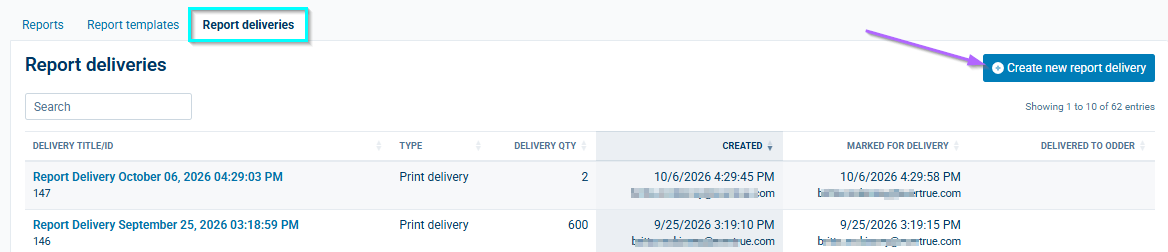
- Create a title for the delivery package then click the 'Select a delivery method' button.
- Choose the method of delivery (for electronic, choose email) then hit the 'Continue' button.
- Select the approved report batch(es) to include in the delivery and click the 'Continue' button.
- Review the constituents included in the report batches to identify anyone that should not receive a report, as well as identify any constituents that have incomplete records for delivery (i.e. no email address). Deselect anyone that should not receive the report. Hit the 'Continue' button once you're done.
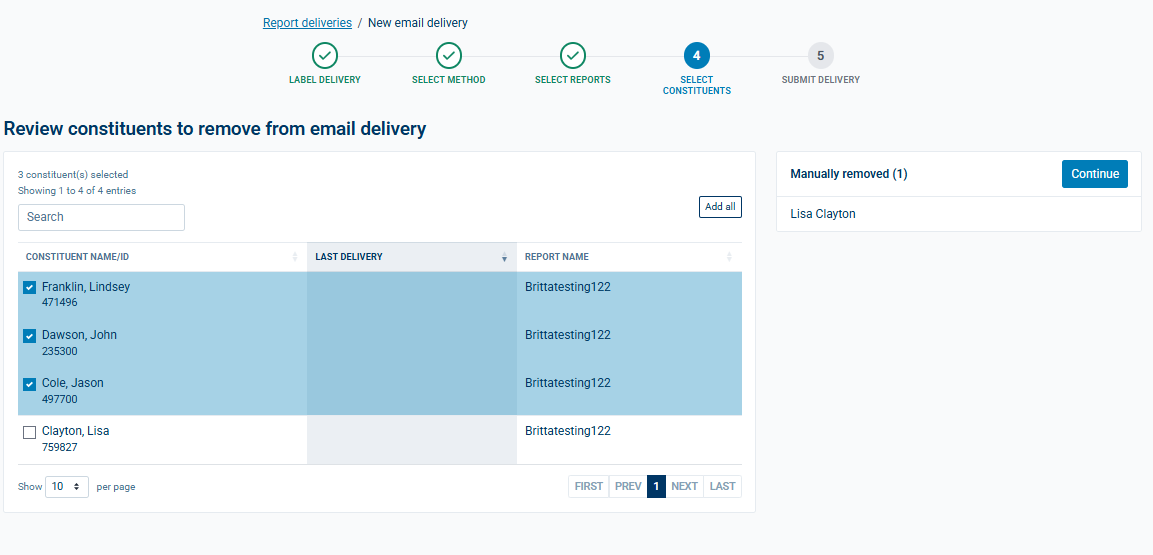
- Once constituents are reviewed, you are able to download a csv of any constituents that have incomplete records so that you can update the information in your donor management system.
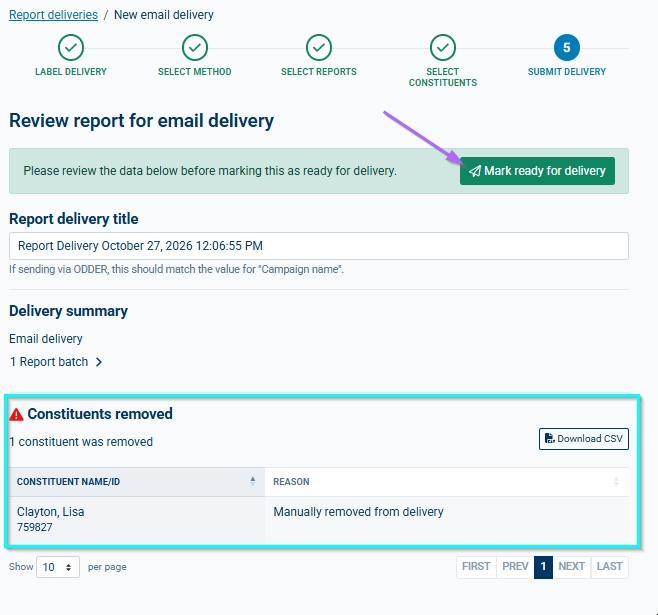
- Click the 'Mark ready for delivery button' once you've reviewed the report delivery once more and any removed constituents. A pop-up will appear asking if you are sure you want to mark this ready for final delivery, click 'Yes, mark as ready'.
- You'll then see a confirmation that the data was marked for delivery.
- If you are sending your reports electronically in-house, you are able to generate the reports in a PDF format, as well as generate a .csv file of your constituents with their contact information.
Print Delivery
Under the Report section in Impact, select the "Report deliveries" tab.
Click the 'Create new report delivery' button in the top right corner.
- Create a title for the delivery package then click the 'Select a delivery method' button.
- Choose the method of delivery (Print) then hit the 'Continue' button.
- Select the approved report batch(es) to include in the delivery and click the 'Continue' button.
- Review the constituents included in the report batches to identify anyone that should not receive a report, as well as identify any constituents that have incomplete records for delivery (i.e. no email address). Deselect anyone that should not receive the report. Hit the 'Continue' button once you're done.
- Click the 'Mark ready for delivery button' once you've reviewed the report delivery once more and any removed constituents. A pop-up will appear asking if you are sure you want to mark this ready for final delivery, click 'Yes, mark as ready'.
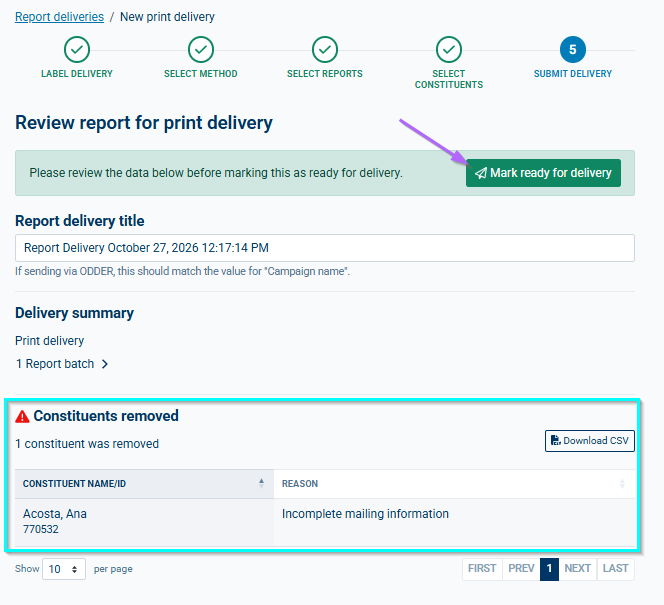
- You'll then see a confirmation that the data was marked for delivery.
- Once constituents are reviewed, you are able to download a csv of any constituents that have incomplete records so that you can update the information in your donor management system.
- Once all of the constituent information is finalized, you are able to download a zip file with both the PDFs of the reports, as well as a .csv file of your constituent contact information for mail delivery to either use in-house or send to a print house.
Was this article helpful?
Reply
Content aside
- 8 mths agoLast active
- 47Views
-
1
Following