
Report Template Creation: Step by Step Guide
Report Template Step by Step Guide:
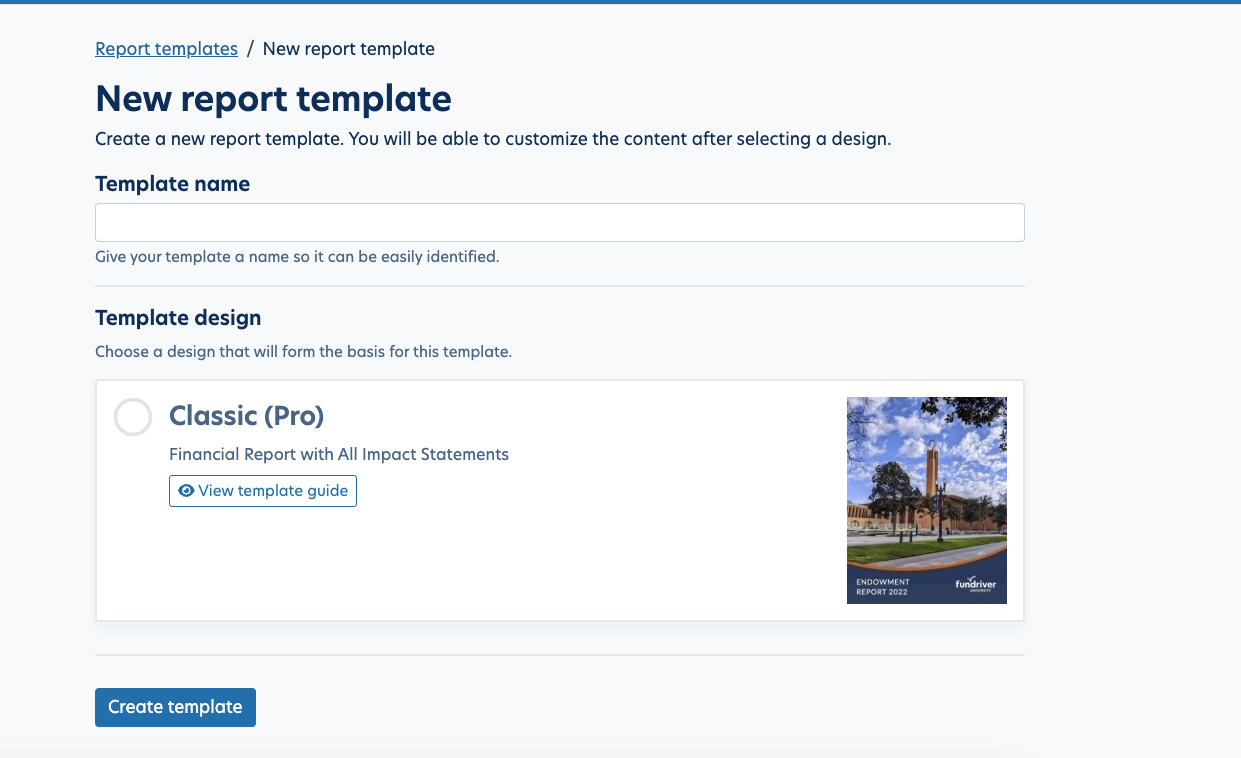
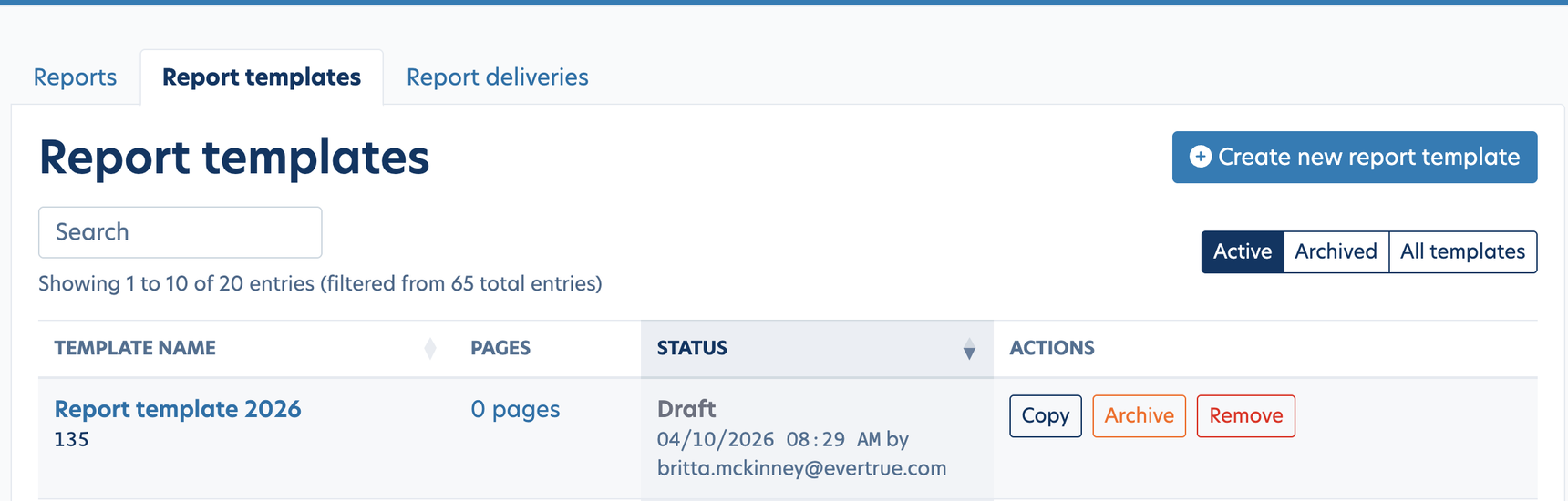
Go to Report Tab -> Report Templates tab -> Create new report template

1. Name your Report Template
2. Select Template Design (Classic Pro)
3. Create Template
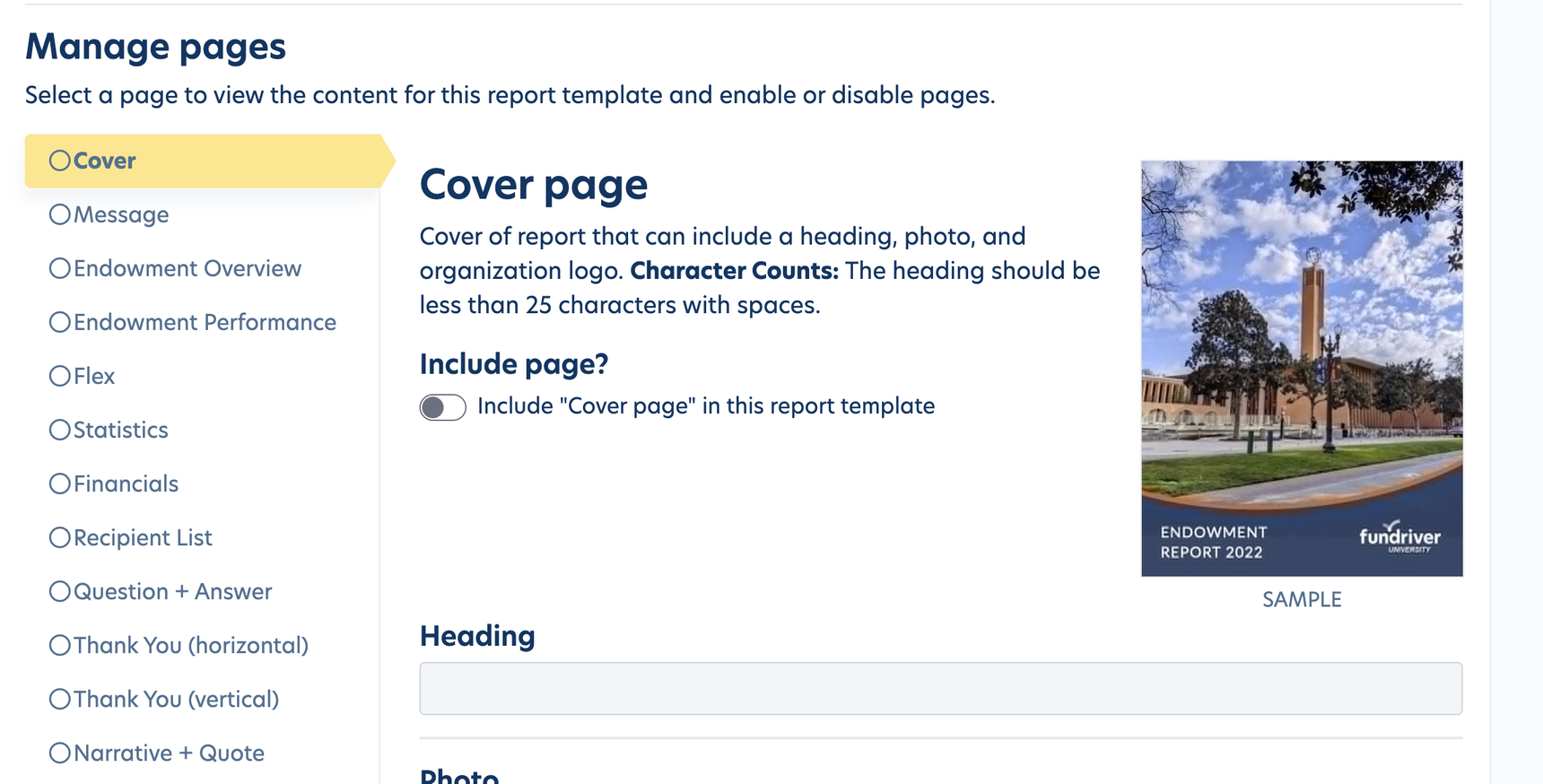
Manage Pages:
Here you will Manage Pages in your template. To include a page, click on the page name on the left side and then toggle on the "Include Page?". (To turn a remove page from the template, toggle the "Include Page" back off).
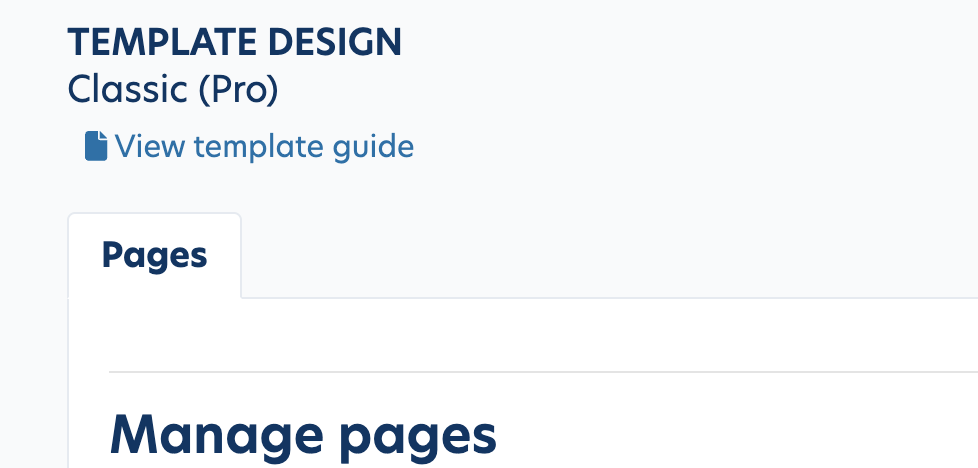
Template Guide
At the top of the page, you can view the Template Guide that provides details about character limits and photo sizing. (Note: If character limits are exceeded, the text will cut off rather than run onto another page).
Note: The template is set as is. There is only ONE page of each and they are set in the order they display.
Running a Proof:
In order to see a live preview of the template you've created, you can run a Proof. To run a Proof, you will select the "Proof Template" button at the bottom of the template page. Running a Proof will a generate a PDF example of your template. (Note: If you are using one of the dynamic pages such as the recipient page, thank yous or Q&A and do not have data uploaded yet, you will receive an error message when running a proof. If you'd like to continue and see the other pages, simply toggle off the dynamic page, press Save and try again).
- After running a Proof, the latest PDF will display at the top of the page above the template design. Note: when you run a new proof, that will discard the old proof.
- On the main Report Template page, you can create a Copy, Archive or Remove a Report Template. Note: once a template is approved, it can no longer be removed.
Reply
Content aside
- 3 mths agoLast active
- 14Views
-
1
Following