
Fund Tab: Explained
On the Fund tab, you can review details about the Funds in your Impact database.
Sort by any of the columns or export the full list as an XLSX or CSV
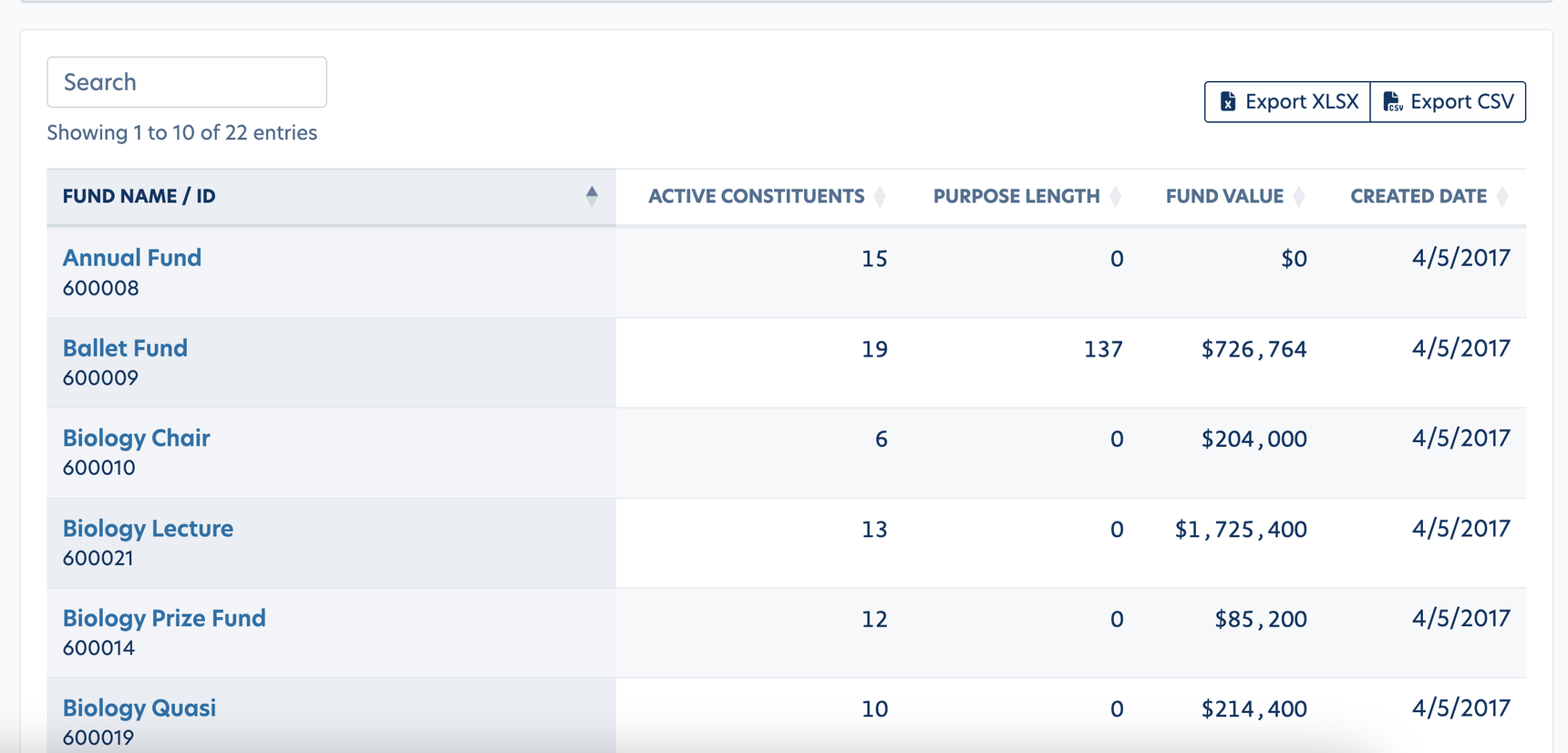
Click into a fund to find Performance, Impact Statements, Constituents, and Recipients connected to that particular fund.
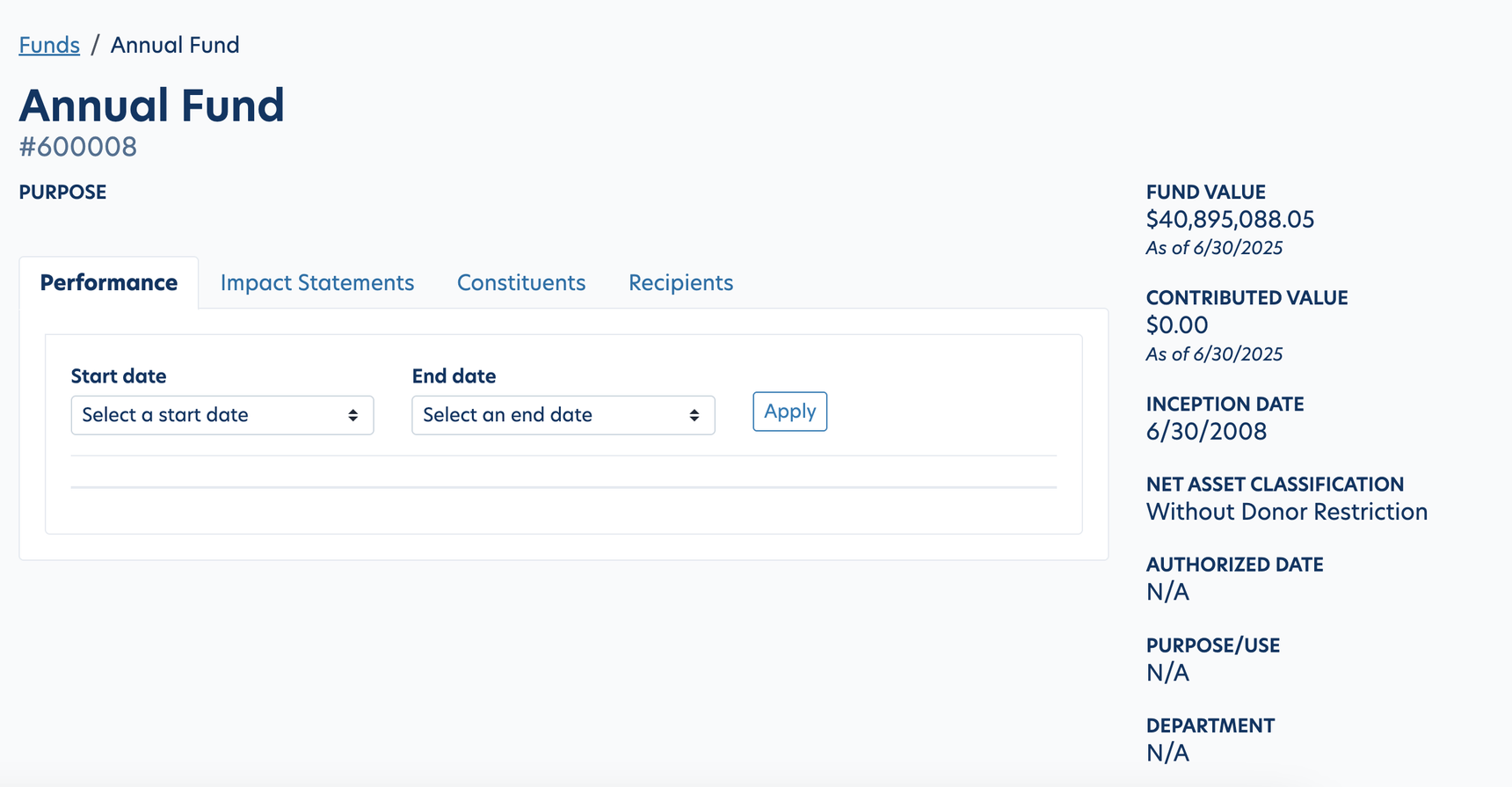
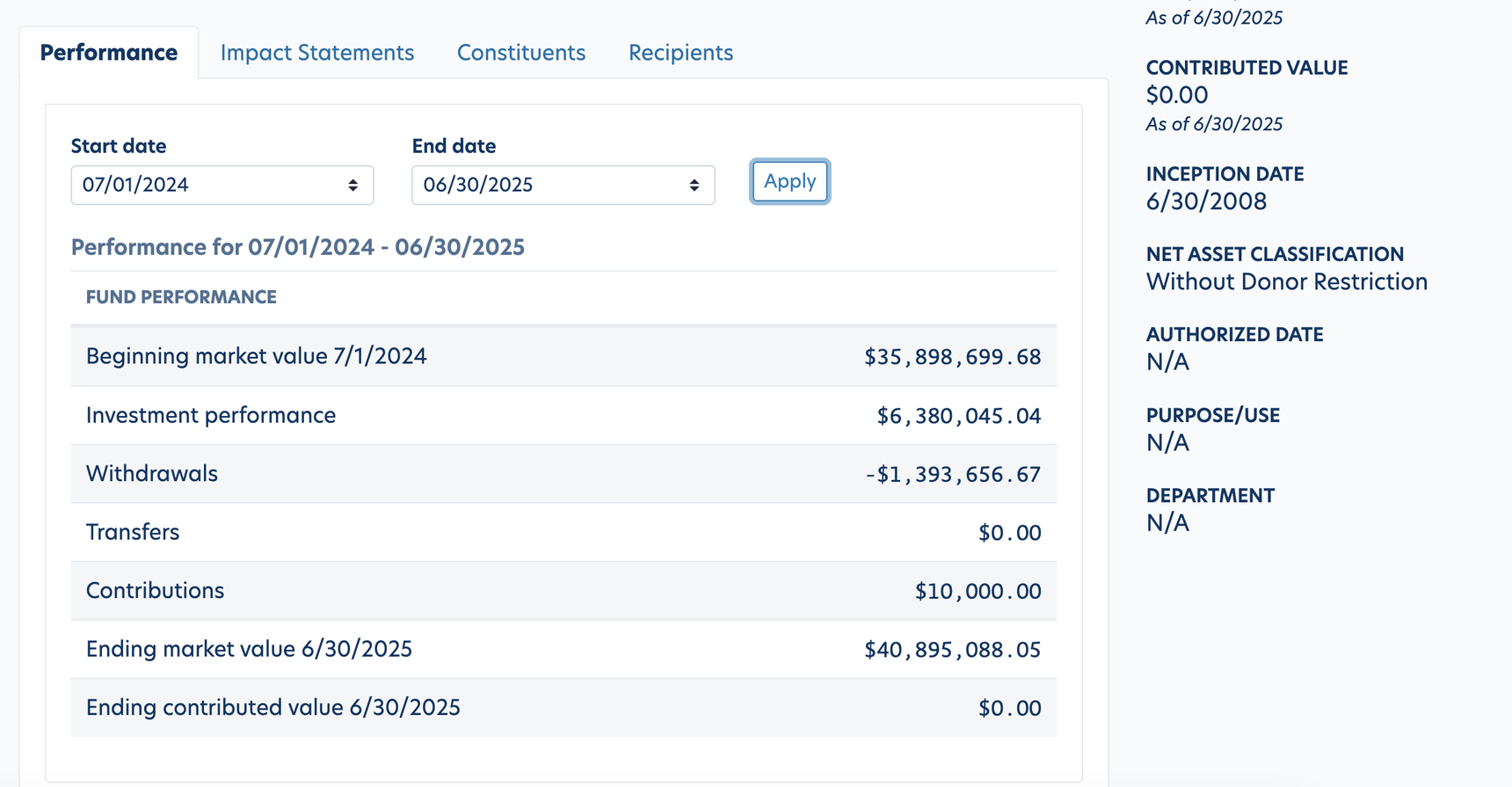
Performance
Select any date range to view the financial data for that fund. This information is pulled directly from Balance and the format of the output will match how the fund financial page is configured for Impact.
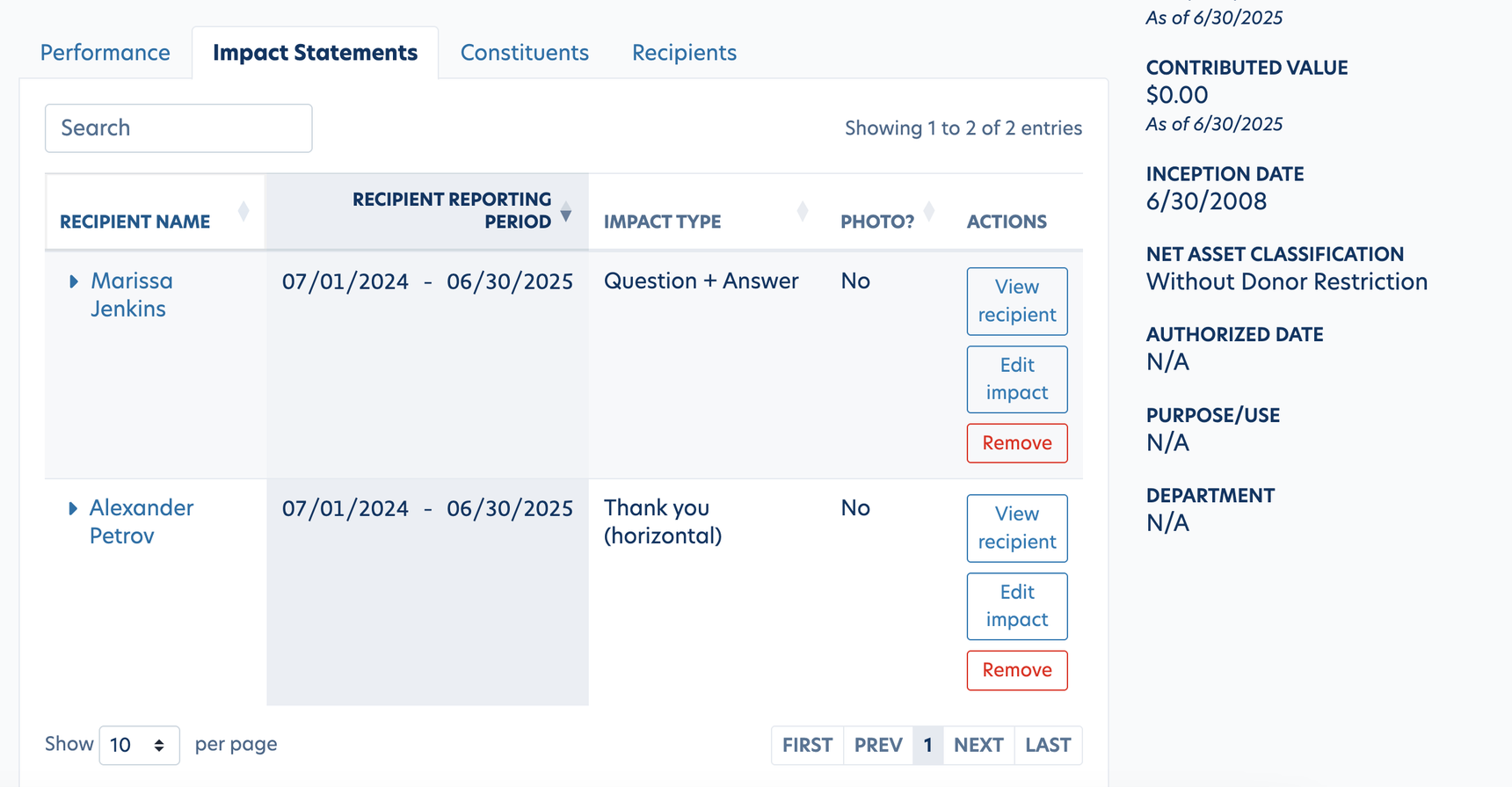
Impact Statements
On this tab you will find any Impact Statements connected to this fund. This could include Thank Yous (horizontal or vertical), Question + Answer, Narrative + Quote or Recipient Lists. By clicking the arrow next to the recipient name, you can view the full impact statement details and photo of the recipient (if applicable). By selecting "Edit Impact" you can manually edit that Impact Statement.
Constituents
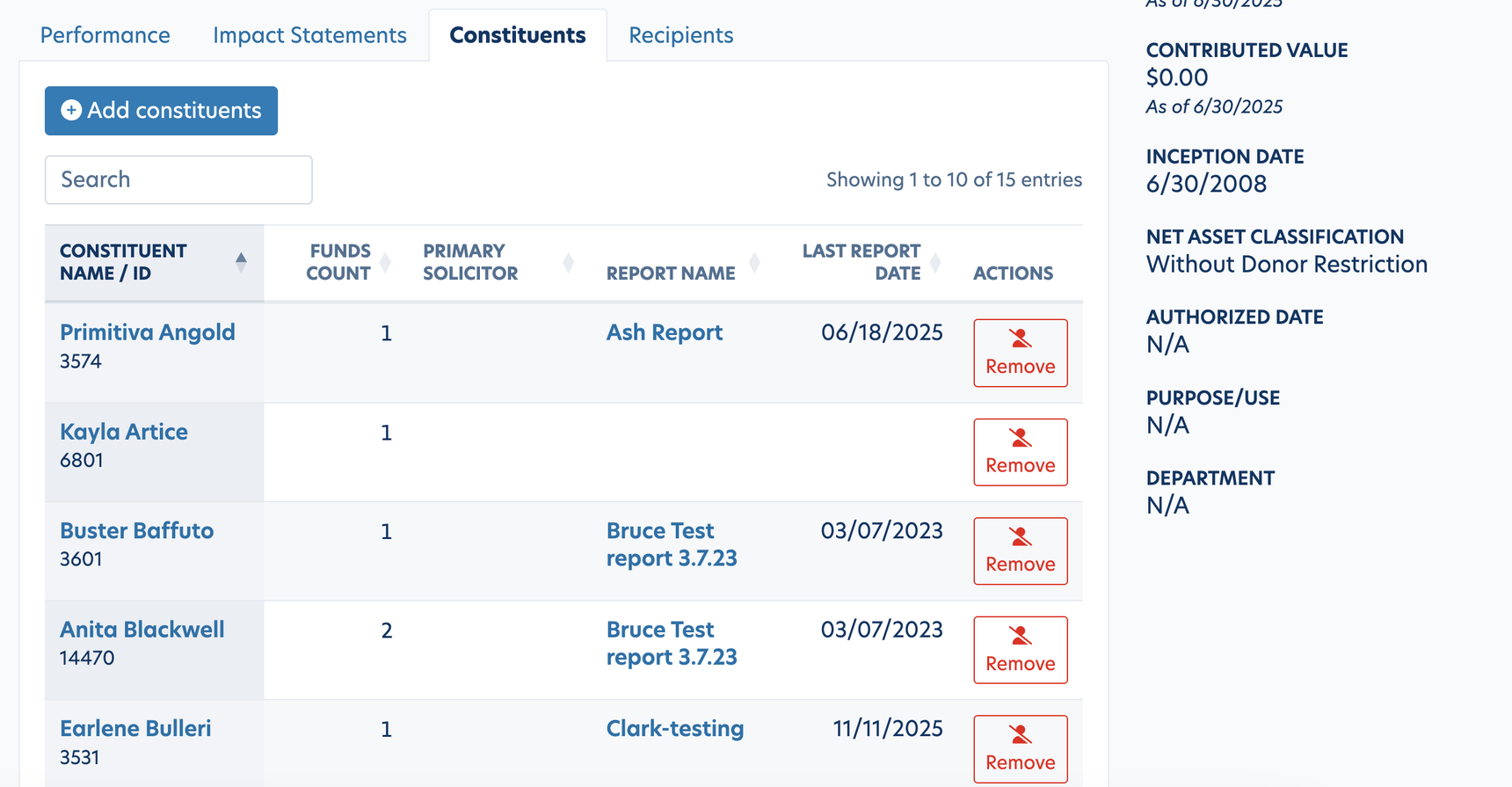
On this tab you will find the Constituents connected to this fund. Here you can add constituents, Remove a constituent, click into the constituent's profile and see other columns such as Primary Solicitor and Last Report Date.
Note: If you manually add a constituent on this page, make sure to also add that constituent to your Fund to Constituent mapping file as that that file must include ALL relationships.
Recipients
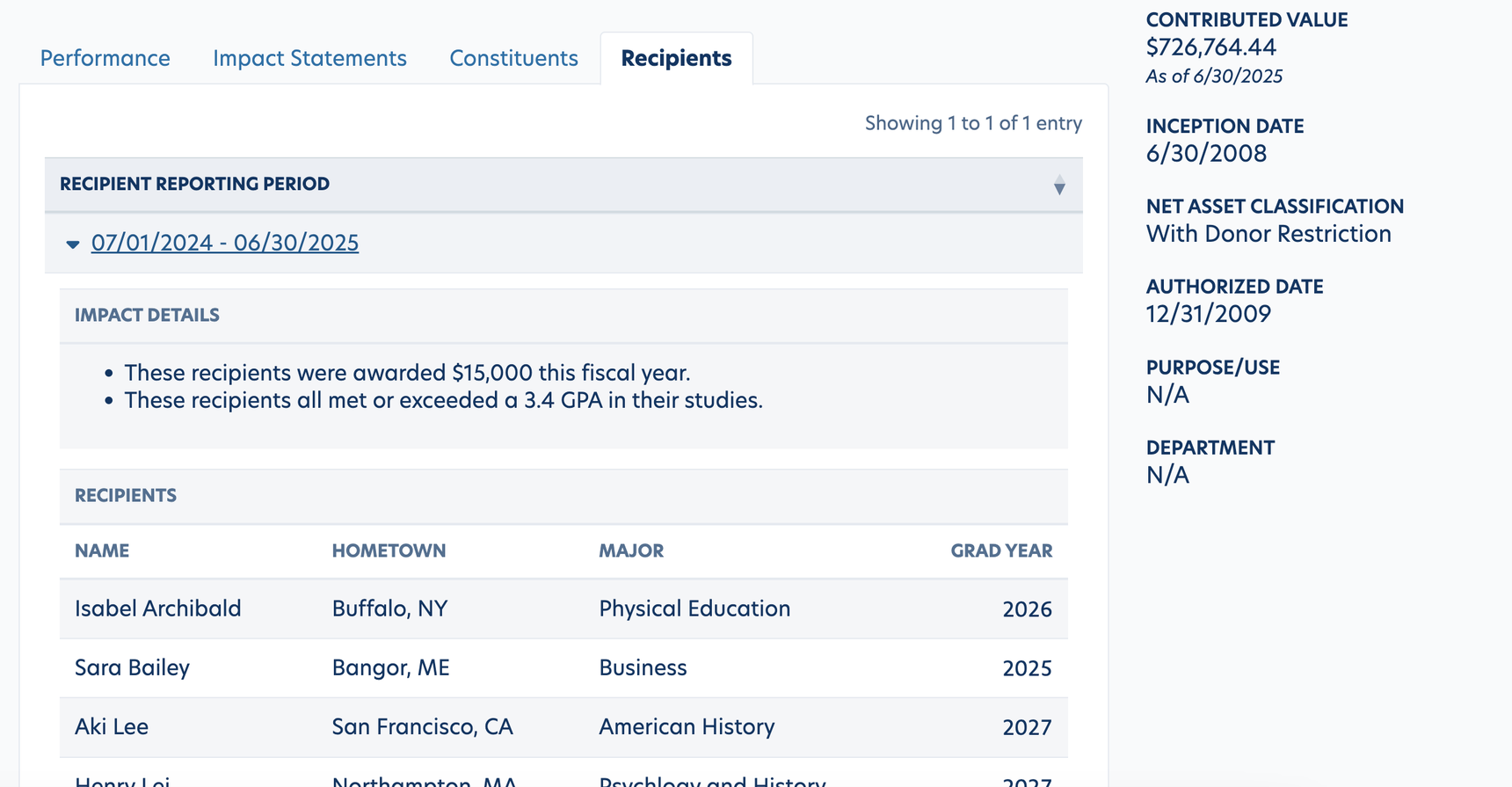
On this tab you will find the Recipients connected to this fund. By clicking on the dropdown arrow, the Impact Details (aka Recipient Page Fund Bullets) and list of Recipients (Recipient Page Fund Recipients) will display. This is the information that displays on the Recipient Page.
Reply
Content aside
- 5 mths agoLast active
- 18Views
-
1
Following