
Release Notes: November 7, 2026
Release Notes: November 7, 2026
Recipient Collection: see who updated a recipient and when, and export the list
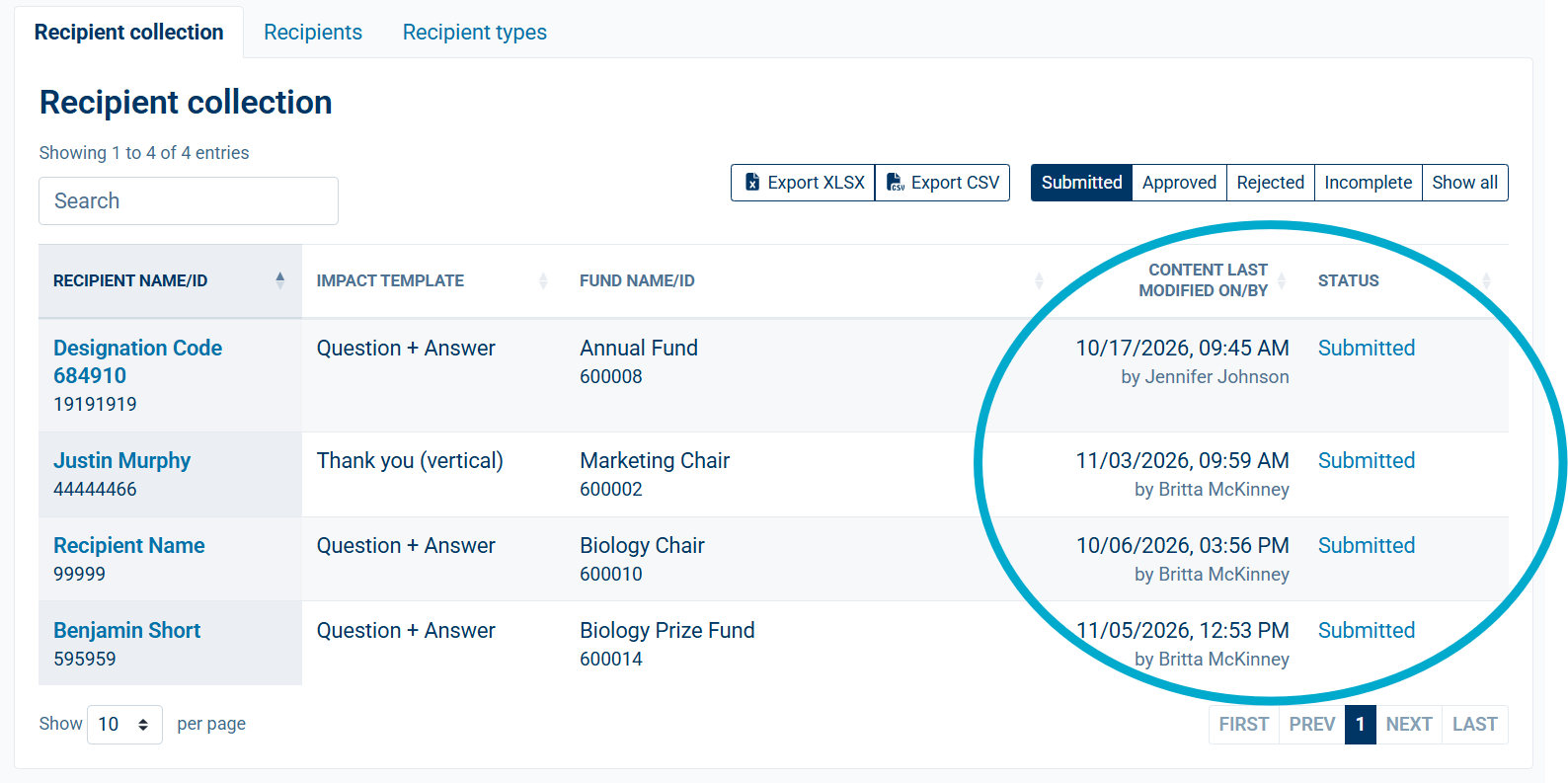
Recipient Collection now shows when a recipient’s status and content were last saved, and by whom. You can also export the list to Excel or CSV.
When you are reviewing recipient statements, especially approving a large batch of bulk-imported recipients, it helps to know when something changed and who changed it. Recipient Collection now answers both questions.
What’s new:
Status last saved: each recipient shows the date and user for the most recent status change. This appears on the Submitted, Approved, Rejected and Incomplete tabs, and on Show all.
Content last saved: a separate date and user shows when the recipient’s impact content was last saved.
Recipient Collection Detail: the same status and content details appear when you open a recipient.
Export: Excel and CSV export buttons now sit above the grid, working the same way as on other Impact pages.
Press Enter to add line breaks and blank lines in report templates
Entering a blank line in a report template no longer requires typing an HTML tag.
In the report template editor you can now press Enter to start a new line, and press Enter twice to leave a blank line. What you type is what appears in the preview and the PDF.
What’s new:
Line breaks and blank lines are saved exactly where you put them, including a blank line at the start of a paragraph.
The <br> tag still works if you already use it in your templates.
Text pasted from Word, Excel, a PDF or a web page keeps its line breaks consistently.
When you save, hidden characters such as tabs, zero-width spaces, text direction marks and soft hyphens are removed. Visible text and non-breaking spaces are not changed.
Warning when content will not fit on a page
Catch overflowing content while you preview, before you generate.
When you preview a report template, or a recipient’s impact, a warning now appears just beneath the preview for any page where the content will run onto a second page. You can shorten the content or adjust the layout before it reaches a PDF.
Set text colors for your Primary and Secondary design colors
Make text easy to read on light brand colors.
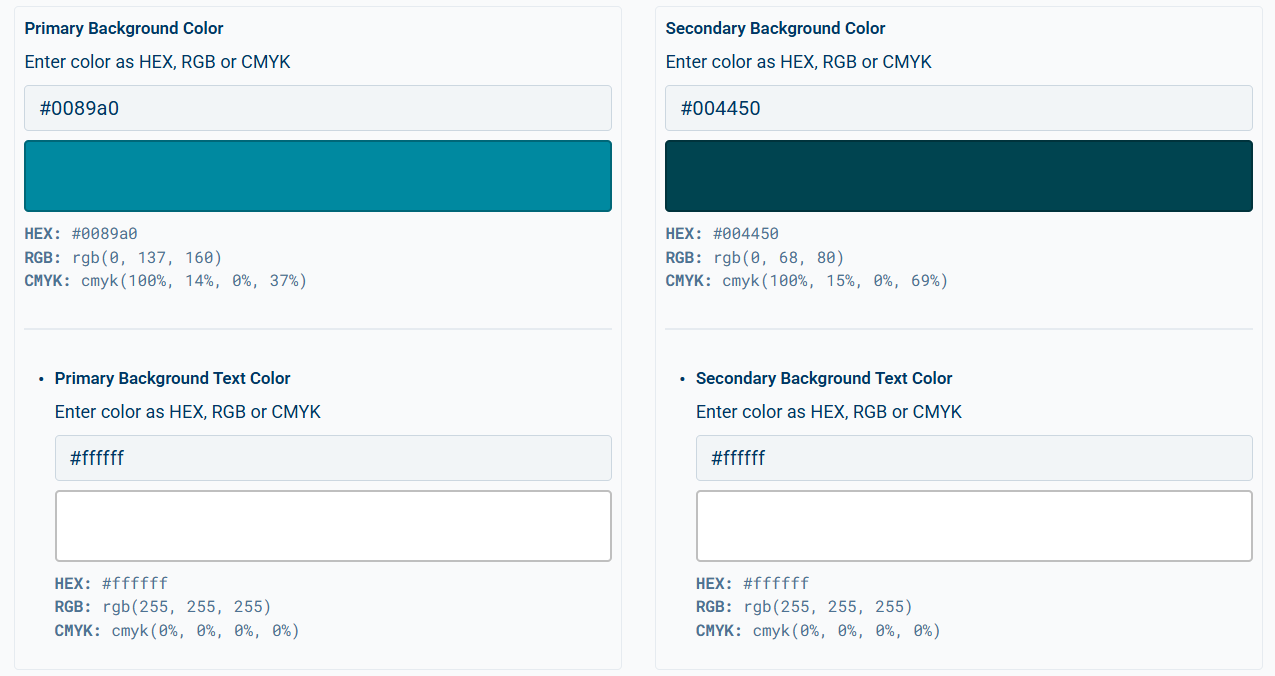
In Manage Designs & Colors you can now choose a Body/Paragraph text color for your Primary color and for Secondary 1. Until now, text placed on these colors, such as cover page headings and back page text, defaulted to white. That could be hard to read on a light brand color.
Text colors are used in HTML previews, template proofs and report batches.
Set them on the Default Colors tab alongside your other brand colors.
Faster, more accurate HTML previews
Previews load faster, and the Thank you pages now match your design.
Smaller previews: we reduced the size of HTML previews, so they load faster and take up less storage. Your PDFs are not affected.
Thank you pages: previews of Thank you (horizontal), Thank you (vertical) and Narrative & Quote now show the fund name and use the colors from your design.
Accessibility improvements to the report template editor
Part of our ongoing accessibility work, so more of your team can build report templates with a keyboard and a screen reader.
We reviewed the report template editor against WCAG 2.1 AA and made improvements, including:
Color fields in Manage colors now have accessible names, so a screen reader announces which color each field controls.
Form fields, including the copy template name and the proof fund selector, are correctly labeled.
Screen readers announce which page tab is selected.
Actions that are unavailable for an inactive design now look unavailable and explain why.
Reporting periods: your active period is listed first
Active period first: on Manage recipient reporting periods, the active period now appears at the top of the list regardless of how the grid is sorted.
Add and Edit recipient type pages: we made accessibility improvements to the page markup so the pages work better with assistive technology.
Better support for special and accented characters
Names and text with characters such as macrons and the ʻokina now save and display correctly.
Previously, some characters outside the standard Latin set could be silently changed when saved. For example, Kūhiō could become Kuhio, and Hawaiʻi could be saved with a question mark in place of the ʻokina. We have updated how Balance and Impact store and display this text so it appears as you entered it, from data entry through to your Impact reports.
Letters with accents that already worked, such as é, ñ and ç, are not affected.
Imports: Class Year No Longer Required
The following import types have been updated Thank you (vertical) Page Submission and Narrative + Quote Page Submission. All import types should now only show warnings for class year and allow user to continue importing their impact.
Images with special characters in the file name supported
We fixed issues with filenames and special characters (such as & ’ " < >) in both previews and PDFs that were causing issues with rendering PDFs and previews. File names that already worked, such as ones with spaces, parentheses or accented letters, are not affected.
New Template Guide
This updated template guide is now available during the Report Template workflow in all databases.
Impact Report Template Guide 2.1 November 2026
The previous version is still available in this article: Creating a Report Template: Step by Step Guide
Reply
Content aside
- 12 days agoLast active
- 20Views
-
1
Following